A desktop GUI for Kimi Code, in parallel
Maestro is a free desktop GUI for Moonshot AI's Kimi Code CLI on macOS, Windows, and Linux. It runs several Kimi Code sessions in parallel, each in its own git worktree, and lets you review, edit, and ship their work from one window.
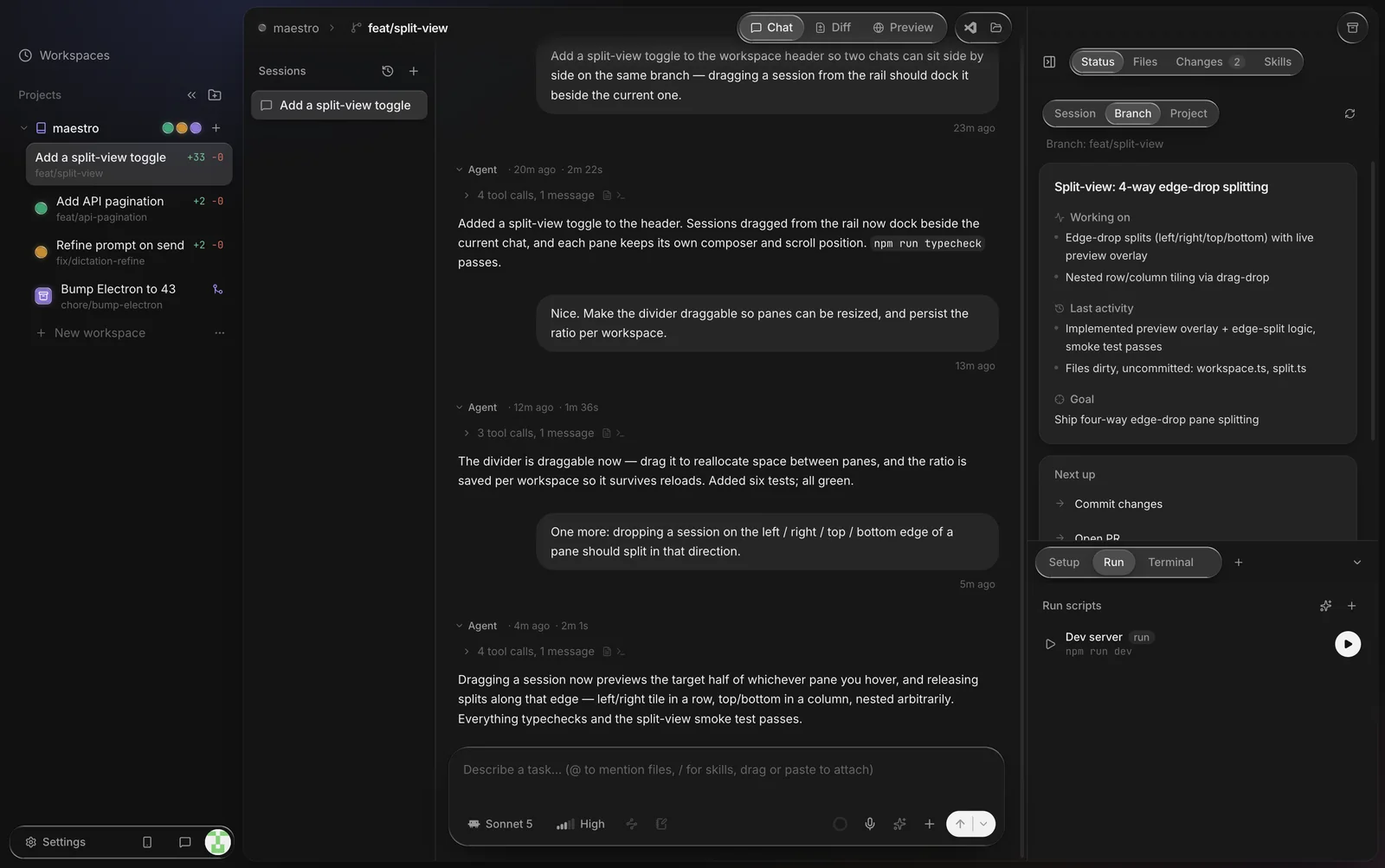
Kimi Code is a terminal agent: you type a task, it reads your code, runs commands, and edits files. That works well for one task at a time. Running two or three Kimi Code tasks at once in the same checkout is where it gets messy, because they edit the same files. Maestro gives each task its own worktree and branch, keeps every session's chat in one window, and takes care of the git busywork around them.
What you get on top of the CLI
- Parallel workspaces. Each workspace is a separate git worktree on its own branch, so parallel Kimi Code runs never write to the same checkout. There is no limit on the number of workspaces.
- A diff review loop. See what each Kimi Code run changed, comment on specific lines, and send the comments back to Kimi Code as the next message.
- Pull requests. Open a PR for the workspace branch without leaving the app.
- An editor and a preview. A Monaco-based editor with Jupyter notebook support, a terminal per workspace, and a built-in browser preview with freeze-frame annotations.
- Your phone. Maestro Web mirrors each workspace to a mobile web app, so you can follow a Kimi Code turn, reply, and review the diff away from your desk. Kimi Code keeps running on your own machine.

How it works
Maestro runs the official kimi binary in its non-interactive print mode, one process
per message, inside the workspace's worktree. Each turn is
kimi -p <prompt> --output-format stream-json. Kimi Code prints a session id
when the turn starts; Maestro stores it and passes --session <id> on the next
message, so the conversation continues where it left off.
- A readable transcript. Kimi Code's JSON lines become chat: its replies, tool calls with their results, and errors.
- A model picker. Choose a Kimi model per chat; Maestro passes it to the CLI with
-m. Leave it alone and Maestro uses its built-in default for Kimi Code. - Approvals. Maestro runs Kimi Code in print mode (
kimi -p), where Kimi never stops to ask for approval: its docs say non-interactive mode uses theautopermission policy, and static deny rules still apply. Each workspace is its own worktree, so a run only touches its own branch. - No plan toggle yet. Maestro only shows its plan toggle for agents where it has a read-only, non-interactive way to run a turn (Claude Code, Codex, OpenCode). It has none wired up for Kimi Code, so the toggle is hidden for Kimi Code workspaces rather than doing nothing.
- Your account. Kimi Code signs in the way it always does (
/login) and stores its own credentials. Or save a Kimi platform API key in Settings → Harnesses; Maestro passes it to the CLI asKIMI_MODEL_API_KEYwith the matching model inKIMI_MODEL_NAME. Settings shows whether it is connected. Maestro does not proxy or bill your usage. - Remote machines. On an SSH project,
kimiruns on the remote host. If it isn't installed or signed in there, Maestro says so and offers the install andkimi logincommands.
Set it up
npm install -g @moonshot-ai/kimi-code (needs a recent Node.js). On Windows it also needs Git for Windows. Check it with kimi --version.
kimi and enter /login, or run kimi login for the device-code flow. If Kimi Code is missing, Maestro's Settings → Harnesses can install it with npm and run the /login flow in an in-app terminal.
Running Kimi Code on Windows and Linux
Maestro itself runs on Windows 10/11 and Linux as well as macOS, and the Kimi Code workflow is the same on all three. On Windows, install Git for Windows before Kimi Code, as Moonshot's guide says. Install notes for Maestro are on the Windows and Linux pages.
What about Kimi Code Desktop?
Moonshot AI has its own desktop app for Kimi Code. As of October 2026 it runs on macOS (Apple silicon and Intel) and Windows, with a built-in terminal and browser and a Git status panel (Moonshot's announcement). If Kimi Code is the only agent you use and you're on a Mac or Windows, it's worth trying.
Maestro makes sense when:
- you're on Linux, or want the same app on every machine you use;
- you want a GUI over the Kimi Code CLI itself, with the same install and sign-in you use in the terminal, and to keep using the terminal too;
- you want each parallel task isolated in its own git worktree and branch, with a PR at the end;
- you also use Claude Code, Codex, Cursor's agent CLI, OpenCode, or Grok Build, and want them all in one window, one agent per workspace;
- you want every workspace on your phone through Maestro Web.
The worktree pattern Maestro uses is the same one you'd set up by hand. For the plain-git version, read how to run Claude Code in parallel with git worktrees; the git side is the same for any agent, Kimi Code included.
FAQ
Is Maestro made by Moonshot AI?
No. Maestro is independent and not affiliated with or endorsed by Moonshot AI. It runs the official Kimi Code CLI, which you install from Moonshot AI.
Can I run several Kimi Code sessions at once?
Yes. Every workspace is its own Kimi Code session in its own git worktree, and there is no cap on workspaces. They run side by side and never share a checkout.
Which platforms does it run on?
macOS (Apple Silicon), Windows 10/11 (64-bit), and Linux (x86_64 AppImage). See Windows and Linux for install notes.
Is it free?
Yes, Maestro and Maestro Web are free. Kimi Code usage counts against your own Kimi account, as it does in the terminal.
Does it support Kimi Code's plan mode?
Not today. Maestro hides its plan toggle for Kimi Code workspaces because it has no read-only, non-interactive plan run wired up for Kimi Code. Claude Code, Codex, and OpenCode workspaces have it. You can still ask Kimi Code for a plan in the message itself.
Can I run Kimi Code and Claude Code at the same time?
Yes. The agent is chosen per workspace, so Kimi Code can work in one worktree while Claude Code, Codex, or Grok Build work in others.